-
Wed, 10th Jun 2009, 09:34 AM
#1
 Posting Pictures:
Please Follow The Directions Word For Word.
If you have further issues, send a PM to me, (Scorpino) and I can assist. 
This is the way that I would recommend on how to post pictures to this great site we call MAAST. It will also work on about 90% of forums worldwide.
I will discuss how to resize your images fast, and also how to upload them, followed by how to post the correct codes on MAAST to get your images to display properly.
The first thing that I recommend you do is go take pictures, and download them from your camera to a folder on your computer.
Open the files and select the ones that you want to show off. I normally create a new folder for these images and drop them in there. I then delete the original folder leaving only the folder with the images that you decided that you liked.
Follow this link and download the Image Resize Tool and I will show you how to resize multiple images at once. You do not have to select "save-as" you can just select "run". Follow the installation through to completion. No reboot is required.
Once that has been installed, resizing is a snap. Open the folder with your pictures that you want to post. Click and drag to highlight all of the pictures. Right click on any portion of the blue highlighted area, and select resize images. Select the medium radio button and select ok.
Once it has resized them, you will see files now have (medium) at the end. If you see those, you are good to go. You can delete the other files, unless you plan on keeping them.
Now, go to www.photobucket.com and sign up for an account. You must enter a valid email so you receive the confirmation email. Once you have logged into photobucket, click the "my album" or "albums" tab. Create a new album named "Fish" and go into that album. You should now see three blank fields with a browse button to the right of each. Click the browse button and open your folder and select one file per line. Once you have picked the files, click upload.
You should now see a progress bar as each file uploads to your PB (photobucket) account.
If you move the pictures around to other albums after you post them, you will break the links and they will no longer display an image.
Now that the hard part is done, get ready to see those pictures!
All you have to do now is look under the picture that you want to post and click anywhere in the img code field. Once you do it will say "copied". Open up your MAAST post and right-click, selecting "paste" to paste the [img] code. You can then click Preview Post and you should see your picture!
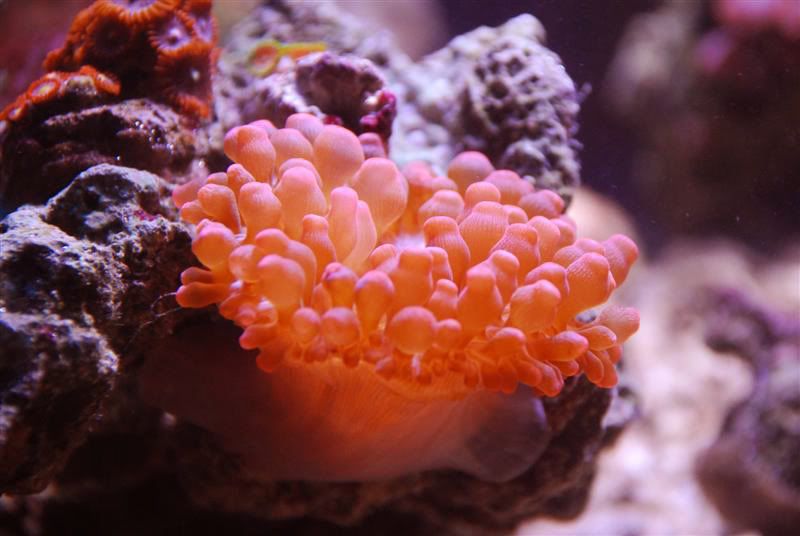
Now, you can delete the pictures from off your computer as you will have copies that are on the internet, and you can access them from anywhere, at any time.
I hope this helps! Remember that a picture is worth a thousand words!
Written By Scorpino: Eric Harrison
Last edited by Pennies2Cents; Wed, 10th Jun 2009 at 02:32 PM.
Reason: Thread Closed
Tags for this Thread
 Posting Permissions
- You may not post new threads
- You may not post replies
- You may not post attachments
- You may not edit your posts
-
Forum Rules


